Recently I upgraded my laptop at work to Windows 7. I like it so far, it has been a good experience so far. Until, I started to debug my Windows Mobile applications via VS 2008 when the device is placed in the cradle and connected via USB.
Windows Mobile devices uses pass through connection to talk to all the external network resources that your laptop or desktop can talk to. This was how it worked by default with Windows XP and active sync.
Active sync on Windows XP pro has this feature turned on by default.
After much research with my bro Google, I was able to figure out it was just one registry setting change that is needed to enable pass through connections. Listed below is the registry setting that is needed.
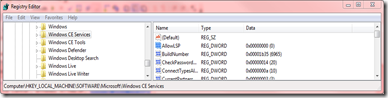
Under the following registry key path,
[HKEY_LOCAL_MACHINE\SOFTWARE\Microsoft\Windows CE Services]
A) set the dword "AllowLSP" to “00000000”
1) (or create a .reg file(example:LSPvalue.reg) with this text
Windows Registry Editor Version 5.00

[HKEY_LOCAL_MACHINE\SOFTWARE\Microsoft\Windows CE Services]
"AllowLSP"=dword:00000000
2) Double click this .reg file to add it to the registry.
3) Disconnect your device and reconnect it.
4) Using Internet explorer on the device Try to browse to a external website or internal website.
You should be able to connect successfully. If not, try to do a warm boot of your device and retry step 4.
Good luck.
-Yogesh
Blogger Labels:
desktop pass through,
AllowLSP, ,
Mobile Device Center


